Why Everyone is Buying the Vulcan II Mini Air (Full Review)
I have spent the better part of the last decade chasing the perfect desk setup. As someone who spends upwards of twelve hours a day between coding projects, writing, and late-night gaming sessions, my keyboard isn't just a peripheral; it is essentially an extension of my hands. I’ve gone through the giant full-sized boards with enough macro keys to launch a space shuttle, and I’ve experimented with the ultra-minimalist 40% boards that required a manual just to find the arrow keys. When the Vulcan II Mini Air started popping up in my feed, I was skeptical. I’ve used Roccat gear before—some I loved, some I found a bit too "gamer-chic" for my evolving taste. But the promise of a 65% optical wireless board with "TITAN II" switches and a battery life that didn’t require a constant umbilical cord to my PC was enough to make me pull the trigger. After four months of daily driving this board through deadlines and dungeon crawls, I finally understand why it’s becoming the go-to recommendation in the electronics community.
The First Impression: Beyond the RGB
When I first unboxed the Vulcan II Mini Air, the immediate standout wasn't the lighting—though we will definitely get to that—it was the weight and the footprint. It’s a 65% layout, which in my experience is the "Goldilocks" zone of keyboard sizes. You lose the numpad and the function row, but you keep the dedicated arrow keys. For a long time, I tried to convince myself I didn't need arrow keys, but after a week of trying to navigate spreadsheets using complex layers, I realized I was just lying to myself. The Mini Air gives me that desk space back without forcing me to relearn how to type.
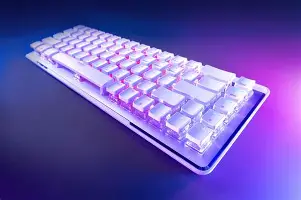
The anodized aluminum top plate felt cool to the touch and gave the board a rigidity I wasn’t expecting from something so compact. I’ve used plastic-housed boards that creak when you apply a little pressure; this feels like a solid slab. However, one thing that bothered me right out of the box was the keycap texture. They are ABS, and while they feel smooth, I knew within minutes they would eventually succumb to the "shine" that plagues ABS caps after heavy use. For a premium "Air" model, I really would have preferred PBT, but I decided to see how they’d hold up before judging too harshly.
Living with the TITAN II Optical Switches
The real heart of this board is the TITAN II Optical Switches. I opted for the linear (red) variety. In my experience, optical switches can sometimes feel a bit "thin" or hollow because there is no physical leaf contact like in a traditional mechanical switch. However, Roccat has done something here that I actually appreciated: the stabilization. I noticed that even when I hit the corners of the keys during a frantic typing burst, there was very little wobble. It feels intentional and precise.
After testing for several months, I found that the 1.4mm actuation point is a double-edged sword. For gaming, it is phenomenal. In titles like Cyberpunk 2077 or fast-paced shooters, the responsiveness is near-instant. I felt like my inputs were registered the millisecond my brain sent the signal to my fingers. But for pure typing? I was surprised by how many typos I made in the first two weeks. The switches are so sensitive that if I lazily rested my fingers on the home row, I’d occasionally look up to see a string of "ssssssss" across my document. You have to be a deliberate typist with this board; it doesn't tolerate "heavy-handedness."
Wireless Performance and the "Air" Factor
The "Air" in the name refers to the 2.4GHz Stellar Wireless and Bluetooth connectivity. I’ve been burned by wireless keyboards before, experiencing dropped inputs or a wake-up lag that makes the first three letters of my password disappear. I am happy to report that the 2.4GHz dongle performance is indistinguishable from a wired connection. I spent weeks swapping between the USB-C cable and the wireless mode, and I could never tell the difference in latency.
The Bluetooth functionality was a surprise hit for me. I often have my iPad Pro sitting next to my main monitor for Slack or Discord. With a quick shortcut, I can jump the Vulcan II Mini Air over to the iPad, fire off a response, and jump back to my PC. It’s seamless. One thing I found was that the battery life varies wildly depending on how much you love the "AIMO" lighting. With the RGB set to 100% brightness and the reactive lighting effects on, I was charging it every three to four days. However, when I dimmed the lights to 20% and used the proximity sensor—which dims the lights when you walk away—I managed to push it to nearly two weeks of work-day use.
The Proximity Sensor: A Gimmick That Works
I have to mention the proximity sensor because it’s one of those features that sounds like a marketing gimmick until you use it. There is a sensor built into the board that detects when you are actually at your desk. If I get up to grab a coffee, the lights fade out almost immediately. When I sit back down, they flare back to life before my hands even touch the keys. It’s a smart way to manage battery life without forcing the user to manually turn the board off. It makes the Vulcan II Mini Air feel like a "smart" device rather than just a dumb peripheral.
Find top-rated Electronics products at great prices.
Shop Amazon →Pros and Cons After Four Months
- Pro: The 65% Layout - It strikes the perfect balance for me. I get my mouse space back for low-DPI gaming, but I don't lose the arrow keys I need for productivity.
- Pro: Dual Wireless Connectivity - Having both 2.4GHz for gaming and Bluetooth for my tablet makes this much more versatile than a standard wired board.
- Pro: Build Quality - The aluminum top plate is sturdy, looks premium, and doesn't show fingerprints as much as I expected.
- Pro: Smart Lighting Features - The proximity sensor and the AIMO lighting system are actually genuinely useful for battery management, not just for show.
- Con: ABS Keycaps - At this price point, I really expected PBT. After four months, my 'E' and 'R' keys are already starting to show a bit of gloss.
- Con: Software Dependency - To get the most out of the "Easy-Shift" layers, you really need the Swarm software installed, which can be a bit bloated compared to some competitors' lighter utilities.
- Con: Sensitive Actuation - The 1.4mm actuation is great for gaming but can be frustrating for those who are used to heavier, more tactile switches for typing.
Technical Breakdown and Comparison
To really understand where the Vulcan II Mini Air sits in the current market, I put together a comparison of how it stacks up against some of the other boards I've used recently in this category. While specifications don't tell the whole story, they provide a good baseline for why people are gravitating toward this specific model.
| Feature | Vulcan II Mini Air | Standard 60% Boards | Full-Sized "Gaming" Boards |
|---|---|---|---|
| Form Factor | 65% (Includes Arrows) | 60% (No Arrows) | 100% (Includes Numpad) |
| Switch Type | TITAN II Optical (Linear) | Variable (Mechanical/Optical) | Traditional Mechanical |
| Connectivity | 2.4GHz / Bluetooth / Wired | Usually Wired Only | Wired (mostly) |
| Aesthetics | Low-Profile Caps / Floating Switch | Standard Boxy Aesthetic | Industrial / High Profile |
| Portability | High (Wireless + Compact) | High (Compact) | Low (Heavy + Large) |
Buying Guide: Is the Vulcan II Mini Air Right for You?
When I’m asked if someone should buy this keyboard, I usually start by asking what they plan to do with it for 80% of their time. If you are a professional typist who does zero gaming, this might not be your first choice. The linear optical switches are built for speed, not necessarily for the tactile feedback that long-form writers often crave. However, if you are a "hybrid" user like me—someone who works the day shift and then spends their evenings in a virtual world—the Vulcan II Mini Air makes a compelling case.
Consider the Workflow
In my experience, the "Easy-Shift[+]" technology is the hidden gem of the Roccat ecosystem. It allows you to assign a secondary f…Aesthetics vs. Utility
This keyboard is flashy. The floating switch design means the RGB lighting spills out from under the keycaps and reflects off the aluminum plate. It’s beautiful, honestly, but it’s loud. If you work in a conservative office environment where "stealth" is the goal, the Vulcan II Mini Air will definitely stand out. But if you’re like me and you enjoy a bit of "cyberpunk" flair on your desk, it’s one of the best-looking boards on the market.
The Keycap Situation
One thing I noticed that I think a real owner would care about is the stem compatibility. The TITAN II switches use a standard cross-shaped stem, which meant that when I got tired of the ABS keycaps, I was able to swap them out for a third-party PBT set. Be warned, though: because of the unique low-profile design of the original caps, standard profile caps will change the look of the board significantly. It loses some of that "slim" appeal, but the typing feel improves. It’s a trade-off I eventually made, and I haven't looked back.
Detailed Experience: The Noise Factor
I feel like many reviews gloss over the sound profile of a keyboard, but for those of us who live with others or work in quiet spaces, it's vital. The Vulcan II Mini Air is not "silent." While the switches are linear and don't have a click-jacket, the sound of the keycap hitting the aluminum plate creates a distinct "clack." It's a high-pitched, clean sound rather than a deep, thumpy "thock." After using it for several months, I found that placing a desk mat under the keyboard helped dampen some of the resonance from the aluminum plate, making the sound much more pleasant for my late-night sessions.
I was surprised by how much I enjoyed the sound of the spacebar. Often on mass-produced boards, the spacebar sounds rattly or hollow. Roccat seems to have lubed the stabilizers reasonably well from the factory. There is a bit of a metallic ping if you strike it particularly hard, but for the most part, it's one of the more solid-sounding stabilized keys I’ve used in the mainstream gaming category.
Discover deals on Electronics — updated daily.
Shop Amazon →Software and Customization
I mentioned the Swarm software earlier as a con, and I want to elaborate on that. While the software is visually a bit dated, the depth of customization is impressive. You can customize the lighting for every single key individually. For specific games, I like to highlight just the keys I use—WASD in one color, abilities in another—and the board handles this flawlessly. What I found particularly useful was the ability to create different profiles that trigger automatically when I launch a specific application. When I open Excel, my arrow keys and math operators light up; when I open a game, they dim to let the game-specific keys shine.
However, the software can be finicky. I noticed that every once in a while, it would fail to recognize the board over Bluetooth, requiring me to plug it in via USB to sync settings. It’s a minor annoyance, but when you’re paying for a premium wireless experience, you want the software to be as "Air" as the hardware.
Conclusion
After four months of using the Vulcan II Mini Air as my primary interface with the world, my feelings are overwhelmingly positive. I’ve reached a point where I don't think about the keyboard anymore while I'm using it—and for a peripheral, that is the highest praise I can give. The 1.4mm switches have become second nature, the 65% layout has reclaimed my desk, and the wireless reliability has removed the clutter that used to annoy me every morning.
It isn't perfect—the ABS caps are a disappointment for the price, and the software layer could use a modern facelift—but the core experience is incredibly polished. I noticed that my desk feels more "open," my gaming feels more responsive, and the smart lighting features actually make me feel like I’m using a device designed for 2026. If you are looking for a compact board that doesn't compromise on functionality or build quality, I can genuinely see why everyone is buying this one. It’s a tool that manages to be both a high-performance gaming device and a competent productivity workhorse, all while looking better than almost anything else on my desk.
Ultimately, the Vulcan II Mini Air isn't just about saving space or adding RGB; it's about a combination of small, thoughtful features like the proximity sensor and the Stellar Wireless that make the daily act of computing just a little bit smoother. In my experience, those small improvements are what justify the upgrade. Whether you're a gamer looking for that millisecond advantage or a creative professional who appreciates a minimalist aesthetic, this board has likely earned its spot in your setup. I know it’s earned its spot in mine.